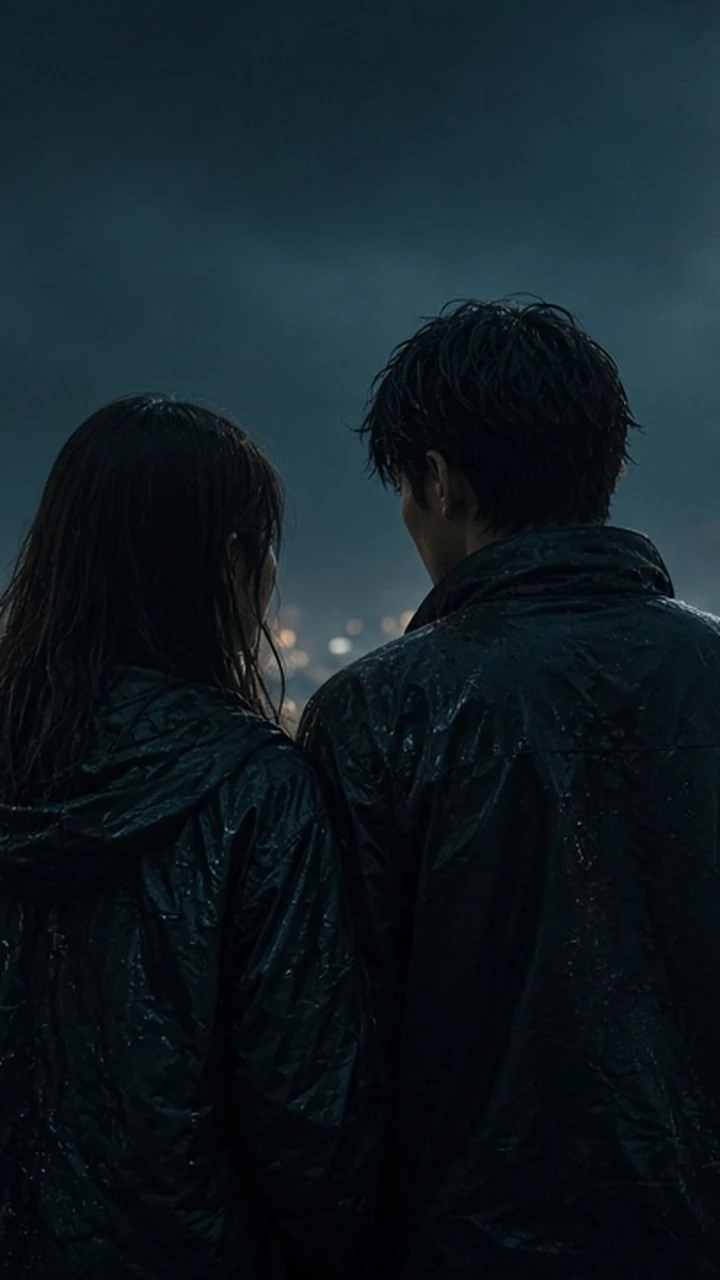
Zombie love story Leonardo
To make a zombie love story Leonardo edit, open the Video tool, add each matching 9:16 still as a Start frame using image guidance or Select an Image, choose Motion 2.0 or Motion 2.0 Fast, write a motion prompt, optionally apply a subtle Dolly In or Handheld Motion Control with Motion 2.0, generate each take, and trim them into a silent twelve-second sequence.
What Leonardo and Motion 2.0 offer
Leonardo.Ai describes Video as its dedicated motion tool. Motion 2.0 and Motion 2.0 Fast are its video models; this guide uses their image-to-video path to animate separate stills. Create Video from a generated image defaults to Motion 2.0 Fast. Switch to Motion 2.0 if you want Motion Controls: the Help Center says Motion Controls and Motion Elements are compatible with Motion 2.0 only. Motion Controls guide camera movement or visual effects; they are optional, not a guarantee of a particular result.
We are independent and have no affiliation with Leonardo.Ai. This comparison follows the official documentation linked below; we have not tested a logged-in Leonardo workflow or API. Our target is an editorial plan: about twelve seconds, vertical 9:16 and silent, with a ruined world, a gun that never fires, a hug and a warm-memory match cut. Those are our choices, not a Leonardo preset.
Our maker is a preview/demo. Paid generation is disabled; checkout is a demo and does not charge, and live paid generation is not connected for mass production. It has no freeform prompt field, and the preview shows a cinematic sample still, not a finished generated MP4. HappyHorse 1.1 R2V via fal remains our intended future provider; Leonardo is a separate DIY comparison.
Prepare four matching portrait stills
Use images you have rights to and depict consenting adults. Compose a portrait still for each beat: a ruined street, the moment of refusal, a cold embrace, and the same embrace in a warm memory. Keep recognizable clothing and a red scarf consistent. Suggest the fictional zombie through pale makeup and posture, with no gore. The prop gun points down and away from people and never fires.
For the last two images, match head positions, hands, shoulder angles and camera height. Overlay the stills in an editor and adjust the composition before animating. Leave room around the subjects so a crop does not cut off their hands. A consistent starting pose makes the eventual match cut easier to judge, but it cannot ensure that generated faces or hands remain stable.
The Video Help Center lists PNG, JPEG/JPG and WEBP uploads up to 5MB and says only paid users can upload their own images. It separately documents Generate Video or Create Video from a generated image. Choose the path that fits your source material and check the current interface before starting.
Our four-beat shot plan mapped to Motion 2.0
These are our edit targets, not Leonardo durations. Use one matching Start frame per take and keep only the clearest portion.
| Beat and target | Motion 2.0 / Motion 2.0 Fast direction | Editorial choice |
|---|---|---|
| 0–3s: ruined world | Start with the adults separated in a damaged street. Prompt a small movement in the scarf; optionally use subtle Dolly Out on Motion 2.0. | Establish the distance and leave a clear sightline between them. |
| 3–6s: gun never fires | Start with the survivor lowering the prop away from people. Prompt a slow release of tension; optionally use subtle Handheld on Motion 2.0. | Cut on the lowering gesture. The refusal must read without a shot or dialogue. |
| 6–9s: hug | Start with both adults already close enough to embrace. Prompt a gentle closing of their arms; optionally use subtle Dolly In on Motion 2.0. | Keep the hands visible and choose a settled frame for the cut. |
| 9–12s: warm memory | Start from the matched warm embrace. Prompt a slight breath and a small movement of the scarf; optionally use subtle Dolly In on Motion 2.0. | Cut directly from the cold pose to the matching warm pose, then hold. |
Generate each beat from a Start frame
Open the Video tool. The Help Center places it below the prompt bar or in the left side bar; use the side bar model picker to choose Motion 2.0 or Motion 2.0 Fast. Use the image guidance button by the prompt bar, select Start frame and choose an existing generation or upload your image. The documented upload path also uses Select an Image, then Select Image Input and Upload an image to get started. For an image already generated on the platform, Generate Video or Create Video is another documented starting point.
Create Video defaults to Motion 2.0 Fast, so switch to Motion 2.0 when using a Motion Control. Enter one motion prompt for the still, optionally choose a quiet Dolly In, Dolly Out or Handheld control, and Generate. The Library holds generated videos, and the Help Center documents .mp4 downloads. Repeat for the other three stills and review the actual takes before deciding where to cut.
The Help Center says sidebar options vary by model. It does not list Motion 2.0 duration or aspect choices in the interface, so do not assume a twelve-second or 9:16 setting is available. If the interface offers a suitable portrait option, use it; otherwise leave crop room and finish in an editor. The official sources do not document a Motion 2.0 end-frame control. Compose the two embrace stills to match, then make the transition in the edit.
Copyable motion prompts for the four beats
Use each prompt with its corresponding still. These are original starting points, not official presets. Keep the action small: the still carries the character design and the motion explains what changes. With Motion 2.0, a subtle optional Motion Control can accompany a prompt; omit it if the take already has the movement you want. Motion 2.0 Fast is the alternative when you do not need those controls.
Ruined world: “Two adults face each other across a ruined street. The red scarf moves gently in the breeze as the figures hold their ground. Preserve their clothing and faces; let the distance between them carry the tension.” Optional Motion 2.0 control: Dolly Out.
Refusal: “The survivor slowly lowers the prop gun toward the ground and away from both people. The other adult watches, still and uncertain. Keep the gesture restrained and the faces readable; the gun never fires.” Optional Motion 2.0 control: Handheld.
Hug: “The two adults move into a gentle embrace. Their hands settle against each other’s shoulders, and the red scarf rests between them. Hold the camera close enough to read the relief in their posture.” Optional Motion 2.0 control: Dolly In.
Warm memory: “The same two adults hold the same embrace in warm light. Their shoulders rise with a quiet breath and the scarf shifts slightly. Preserve the placement of their heads and hands so the pose can match the previous shot.” Optional Motion 2.0 control: Dolly In.
Review each generated take at the cut points. If a hand wanders or the scarf changes sides, return to the still or simplify the movement prompt. Generate a fresh take rather than relying on a complicated transition to hide a mismatched pose. Keep the gun out of the embrace shots so the emotional change remains easy to read.
API path and the twelve-second edit
For a programmatic route, the official v1 image-to-video endpoint is POST /api/rest/v1/generations-image-to-video. It documents MOTION2 and MOTION2FAST, an image ID and image type, and a prompt. The generated-image recipe shows Motion 2.0 with a Dolly In element. The v2 POST /api/rest/v2/generations documentation uses model “motion_2.0” or “motion_2.0-fast” and guidances.start_frame. Its documented portrait sizes are 480x832 and 720x1280; use 720x1280 when choosing the latter for our target.
The official Motion 2.0 documentation does not list a clip duration. Generate a separate take for each beat, select roughly three seconds of usable action per beat, and trim the four selections to about twelve seconds total. Those three-second portions are editing targets, not promised generation lengths. If a take is not already portrait, crop it to 9:16; check that the hands and faces survive the crop. If a take has sound, mute or strip it in the editor for our silent target.
Place the cold hug immediately before the warm hug. Match the most stable shoulder and hand positions, cut on the pose rather than on a large camera move, and hold long enough for the memory to register. Watch the whole edit with sound off. A successful cut makes the relationship clear without a voice reference or lip-sync.
DIY Leonardo versus our maker
Both routes use the same story idea, but the work and current product status differ.
| Choice | Leonardo DIY | Our maker |
|---|---|---|
| Inputs and direction | Prepare four matching stills; write a motion prompt for each and choose a model. | Choose two creative-reference photos and walk the fixed four-beat story; no freeform prompt field. |
| Movement and edit | Generate separate takes, inspect them, then trim, crop if needed and remove any audio. | The intended story is about twelve seconds; the preview currently shows a cinematic sample still, not a finished generated MP4. |
| Status | An independent comparison using Leonardo’s documented Video tool or API. | Preview/demo only: checkout does not charge and live paid generation is not connected for mass production. |
Limits and alternatives
A Start frame is a starting reference, not a promise of identical faces, exact hand placement or a seamless match cut. The v2 Motion 2.0 pages document start_frame, not an end frame. If last-frame control matters, compare the Kling guide below and its documented workflow. Motion 2.0 and Motion 2.0 Fast have documented 480p and 720p options; do not assume another resolution or a particular clip length.
If Leonardo is the wrong fit, compare Marey, Nova Reel, LTX, Higgsfield, Firefly, Grok Imagine, Midjourney, Hunyuan, HappyHorse, Seedance, Wan, Vidu, Hailuo, PixVerse, Veo, Sora, Kling, Runway, Luma and Pika in the guides below. Each has different inputs and limits. Or open /create to inspect our fixed story preview; changing tools does not turn the demo into live paid production.
Final checks before sharing
- Watch silently: the ruined world, refusal, hug and warm memory should read without dialogue. The gun never fires; there is no gore.
- Inspect faces, hands, scarf and prop at each cut. Check the shoulder alignment across the match cut.
- Confirm the final 9:16 crop, roughly twelve-second timing and silent export.
- Use images you have rights to, depict consenting adults and make clear that the story is AI fiction.
- Zombie love story Marey
- Zombie love story Nova Reel
- Walk the maker
- Zombie love story LTX
- Zombie love story Higgsfield
- Zombie love story Firefly
- Zombie love story Grok Imagine
- Zombie love story Midjourney
- Zombie love story Hunyuan
- Zombie love story HappyHorse
- Zombie love story Seedance
- Zombie love story Wan
- Zombie love story Vidu
- Zombie love story Hailuo
- Zombie love story PixVerse
- Zombie love story Veo
- Zombie love story Sora
- Zombie love story Kling
- Zombie love story Runway
- Zombie love story Luma
- Zombie love story Pika
Zombie love story Leonardo FAQ
How do I make a zombie love story with Leonardo?
Use matching portrait stills as Start frames in the Video tool, prompt each beat with Motion 2.0 or Motion 2.0 Fast, then trim the takes into a silent twelve-second edit.
Does Motion 2.0 have a documented twelve-second preset?
The official sources do not list a Motion 2.0 duration. Generate per-beat takes and trim the usable portions to your target in an editor.
Can I use a Motion Control with Motion 2.0 Fast?
The Help Center says Motion Controls and Motion Elements are compatible with Motion 2.0 only. Create Video defaults to Motion 2.0 Fast, so switch models if you want a Motion Control.
Can I set an end frame for Motion 2.0?
The official Motion 2.0 pages document a start frame, not an end frame. Match the two embrace stills and cut between the resulting takes; compare our Kling guide if last-frame control matters.
Does your maker generate Leonardo clips?
Our maker is a preview/demo with no freeform prompt field. It shows a cinematic sample still; checkout does not charge and live paid generation is not connected for mass production.