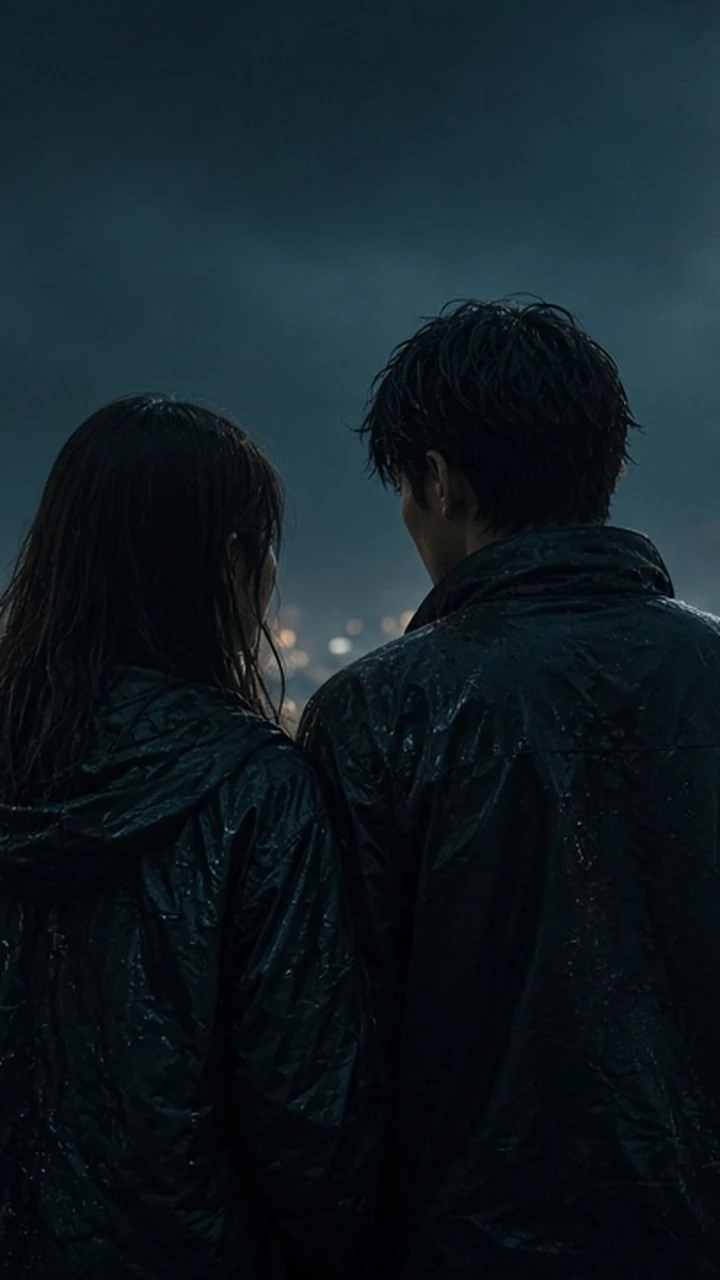
Zombie love story HappyHorse
To make a zombie love story HappyHorse edit, compose matching cold and warm stills, animate the four beats with two-reference R2V or first-frame I2V, then trim them into a silent vertical sequence.
What HappyHorse is, and what is live here
HappyHorse is an Alibaba Cloud Model Studio video model family. Its documented 1.1 workflows are reference-to-video (happyhorse-1.1-r2v), first-frame image-to-video (happyhorse-1.1-i2v), and text-to-video (happyhorse-1.1-t2v). The Sources section links each official API page. HappyHorse and Wan share the Alibaba vendor family, but they are different models with different workflows; our Wan guide covers that separate route. We are independent and have no affiliation with Alibaba, fal, or Higgsfield.
Our target is about twelve seconds, silent, vertical 9:16: ruined world, gun never fires, hug, warm-memory match cut. This is our editorial design, not a HappyHorse preset. Twelve seconds fits the official R2V and I2V 3–15-second duration range. R2V accepts 9:16 directly; I2V follows its first frame, so prepare a 9:16 image. These settings create room for a story, not a guarantee that the story lands.
Our maker is a preview/demo. paidGenerationEnabled is false; checkout is a demo and does not charge. Live paid generation is not connected for mass production. The configured defaultProvider is happyhorse, meaning HappyHorse 1.1 R2V via fal is the intended future path. Preview shows a cinematic sample still, not a finished generated MP4. The maker has no freeform prompt field; the instructions below are for your own DIY workflow.
Prepare references and matching cold/warm stills
Choose two adult subjects whose images you have permission to use. Assign the survivor to reference A and the infected beloved to reference B. Write down a short wardrobe anchor for each: charcoal coat for A, faded red scarf for B. Keep those anchors through the ruined-world shots. Make the infection a fictional change in complexion and posture, with no wounds or gore. Leave enough room around both shoulders for the embrace.
For official Model Studio R2V, supply two reference_image items in media. The first is [Image 1], the second [Image 2]; name the subject as well as the image token. These are subject references, not a start/end pair. The API accepts 1–9 reference images in JPEG, JPG, PNG, or WEBP, with a shortest side of at least 400 pixels and a maximum size of 20 MB each. Its guidance recommends clear images at 720P or higher. See the official R2V source.
For a more deliberate edit, compose four opening stills before animating anything: a wide ruined street, a refusal close enough to read, the cold embrace, and the matching warm embrace. Put the survivor on the same side of the picture throughout. Match the last two pictures by shoulder slope, head position, hand placement, and camera height. Make the memory warmer through light and setting rather than a completely different pose. This is our continuity method, not a documented model control.
Our four-beat shot plan mapped to HappyHorse 1.1 modes
Our mapping uses the official R2V and I2V input roles; timing and shot direction are our own. R2V can combine subjects from reference images according to a prompt. I2V takes exactly one first-frame image, with an optional prompt; it does not take an ending image.
| Edit beat | Two-reference R2V plan | First-frame I2V alternative |
|---|---|---|
| 0–3s: ruined world | Use A and B as subject references; ask for a restrained approach on a cold ruined street. | Start from the composed ruined-street still; animate only a small approach. |
| 3–6s: gun never fires | Keep the reference order; describe a lowered weapon and a visible decision to stop. | Start from a refusal still; use a small wrist drop rather than elaborate weapon action. |
| 6–9s: hug | Keep both wardrobe anchors; ask for a settled, readable embrace. | Start near the embrace so hands have a short distance to travel. |
| 9–12s: warm memory | Request the same embrace in warm daylight; review continuity before choosing a cut. | Use the matching warm first frame; hard-cut from the cold hug in your editor. |
Timing and trim plan: make the decision visible
For a compact R2V experiment, request duration 12 and ratio 9:16 with both references. Outline the four actions in order, then inspect whether the refusal actually happens before the hug. A single request is worth keeping only if the emotional turn reads without explanation. If the scene rushes straight into an embrace, separate the beats rather than adding more adjectives to an overloaded prompt.
Our alternative is four I2V requests at duration 3, one first frame per beat, followed by a twelve-second assembly. Those are source lengths, not guaranteed usable edit lengths. If a gesture consumes the whole take, generate a longer source within the documented range and trim the useful portion. On the timeline reserve roughly three seconds for each beat, but borrow a little time from the establishing shot when the refusal needs a longer hold.
Place the cold-to-warm cut after the embrace settles. Mark a frame where the two shoulders form a clean diagonal, then choose a warm shot with that same diagonal. Use a hard cut first; a dissolve can hide a poor match while weakening the reveal. Watch the sequence with sound muted. If a clip has sound, mute or strip audio in the editor for this trend edit. The cited official pages do not document a generate_audio switch, so this guide supplies no silent-output flag.
Original copyable prompts for the four beats
These are our shot directions, not official examples or guaranteed controls. For Model Studio R2V use the [Image 1] and [Image 2] tokens exactly as shown, matching media order. On fal R2V, replace the survivor reference with character1 and the beloved reference with character2, matching image_urls order. The fal API documents a 2500-character prompt maximum; keep your adapted request inside that tighter limit. For first-frame I2V, replace the image-token subject descriptions with “the survivor in the charcoal coat” and “the beloved in the red scarf”; the supplied first frame establishes the composition.
Beat 1 — ruined world: The survivor in the charcoal coat in [Image 1] stands on the left of a ruined street. The beloved in the faded red scarf in [Image 2] approaches from the right, with pale fictional zombie makeup and a hesitant posture. Cold overcast light, drifting dust, slow camera creep, room around both faces. Let recognition interrupt the survivor’s defensive stance. Restrained movement, no wounds, no gore, no captions.
Beat 2 — refusal: The survivor in the charcoal coat in [Image 1] recognizes the beloved in the red scarf in [Image 2]. In a steady medium two-shot, the survivor lowers the gun toward the ground and opens the free hand. The gun never fires: no muzzle flash, recoil, impact, or injury. The beloved stops within reach. Hold the pause long enough for the choice to read. Keep the same cold light and screen direction.
Beat 3 — hug: The survivor in the charcoal coat in [Image 1] takes one small step toward the beloved in the red scarf in [Image 2]. They settle into a careful embrace on the ruined street. The weapon stays lowered away from both bodies. Keep hands simple and visible, heads resting beside each other, shoulders forming a quiet diagonal. Minimal camera movement, cold light, no attack, no gore. End on a held embrace.
Beat 4 — warm-memory match cut: The survivor in [Image 1] and the beloved in [Image 2] hold the same embrace in warm afternoon light before the fictional disaster. Both appear healthy and relaxed. Keep the survivor on the left, the beloved on the right, the same scarf, shoulder diagonal, camera height, and framing. A peaceful lived-in street replaces the ruins. Tiny breathing movement and a held pose; no text or abrupt camera travel.
DIY HappyHorse versus our maker
HappyHorse 1.1 R2V via fal is our configured future provider path. That configuration does not make the current preview a working production service.
| Decision | DIY workflow | Our maker today |
|---|---|---|
| Inputs | Supply R2V references or one composed first frame per I2V request. | Two photos serve as creative reference in a fixed preview flow. |
| Prompt control | Adapt the beat prompts and arrange your own generation jobs. | No freeform prompt field; these copyable prompts cannot be pasted into the maker. |
| Editing | Choose takes, trim four beats, match the hug, and remove sound in an editor. | Preview shows a cinematic sample still, not a finished generated MP4. |
| Availability | Use your own Model Studio or fal workflow and review its API requirements. | Checkout is a demo and does not charge; live paid generation is not connected for mass production. |
Lengths, limits, and alternatives
The official R2V and I2V APIs document integer durations of 3–15 seconds, default 5, and resolution options 480P, 720P, and 1080P, default 1080P. Choose settings explicitly. I2V preserves the first-frame aspect ratio and has no ratio parameter. Its image must be at least 300 pixels in both dimensions, within the documented 1:2.5–2.5:1 aspect window, and no larger than 20 MB. A 9:16 first frame fits that window. These limits come from the respective API sources.
For a clean edit on the official APIs, set watermark: false if you want no watermark. The documented default is true: I2V and R2V use the fixed text “Happy Horse” at bottom right; the T2V page spells its watermark “HappyHorse”. T2V also lists 9:16, but text alone is a different starting point from our two-reference plan. Do not assume all provider wrappers use identical parameter names; check the source for the endpoint you actually call.
Model Studio R2V and I2V requests are asynchronous: create the task and poll for completion. Their task IDs and successful output video URLs are valid for 24 hours, so download selected results and keep local edit copies. A fixed seed may improve reproducibility, but the official R2V documentation says it does not guarantee identical results. Our review still rejects changing faces, tangled hands, accidental firing, or an unreadable refusal.
If this workflow is the wrong fit, compare Hunyuan, Seedance, Wan, Vidu, Hailuo, PixVerse, Veo, Sora, Midjourney, Kling, Runway, Luma, and Pika using the guides below. Choose according to the inputs you already have and each guide’s documented limits. Wan has its own guide because sharing a vendor family does not make its controls interchangeable with HappyHorse. Or open /create to inspect our fixed story preview; changing tools does not turn that demo into live paid production. Compare Grok Imagine in the guide below. Compare Firefly in the guide below. Compare Higgsfield in the guide below. Compare Marey, LTX, Leonardo and Nova Reel in the guides below.
Final checks before sharing
- Watch the export silently: ruined world, refusal, embrace, then warm memory. Reject gunfire, recoil, injury, or gore. The viewer should understand the choice without a caption.
- Compare faces, fingers, scarf, shoulder alignment, and screen direction at every cut. Trim away distracting motion instead of preserving a take merely because the request succeeded.
- Check the actual exported vertical file, including its audio track and any unwanted watermark. Keep source stills and downloaded takes so one weak beat can be replaced.
- Use permitted references with adult subjects’ consent, label the story as AI fiction, and distinguish the finished DIY export from the cinematic sample still in our preview.
- Zombie love story Marey
- Zombie love story Nova Reel
- Zombie love story Leonardo
- Zombie love story LTX
- Zombie love story Higgsfield
- Zombie love story Firefly
- Zombie love story Grok Imagine
- Zombie love story Midjourney
- Zombie love story Hunyuan
- Walk the maker
- Zombie love story Seedance
- Zombie love story Wan
- Zombie love story Vidu
- Zombie love story Hailuo
- Zombie love story PixVerse
- Zombie love story Veo
- Zombie love story Sora
- Zombie love story Kling
- Zombie love story Runway
- Zombie love story Luma
- Zombie love story Pika
Zombie love story HappyHorse FAQ
How do I make a zombie love story with HappyHorse?
Use two subject references for R2V, or compose one first frame per beat for I2V, animate the ruined world, refusal, hug, and warm memory, then trim a silent vertical edit. The timing is our editorial plan.
Are the two R2V references opening and ending frames?
No. They identify subjects in reference images. Model Studio uses [Image 1] and [Image 2]; fal uses character1 and character2. Official I2V takes a single first frame.
Is twelve seconds a built-in zombie template?
No. Twelve seconds is our target within the official R2V/I2V 3–15-second range. Set R2V to 9:16, or supply a 9:16 first frame for I2V, and edit the beats yourself.
How do I make the final edit silent?
Mute or strip any sound in your editor and verify the exported file. The cited official pages do not document a generate_audio parameter; do not assume the output is silent by default.
Can your maker generate these HappyHorse clips today?
Our maker is a preview/demo with no freeform prompt field. It shows a cinematic sample still, not a finished generated MP4. Checkout does not charge, and live paid generation is not connected for mass production.