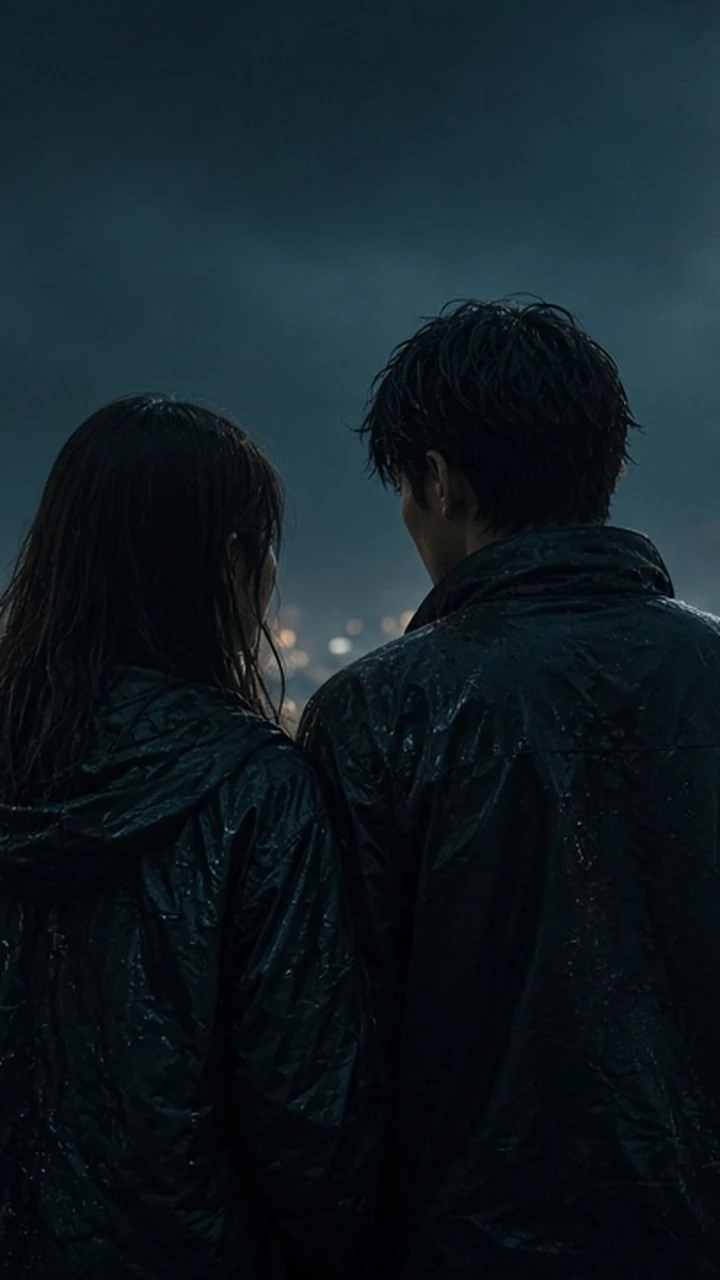
Zombie love story Firefly
To make a zombie love story Firefly edit, select Firefly Video, set Vertical (9:16) and preferably 1080p, upload each portrait still as First with an optional Last frame, write at least eight prompt words when using only First, generate five-second takes, and trim them into a silent twelve-second sequence.
What Firefly Video is, and what is live here
Adobe Firefly Video is a model available in Adobe’s Generate video feature. This guide follows Adobe Help, fetched on November 19, 2026; we have not tested a logged-in Firefly workflow. We are independent and have no affiliation with Adobe or Firefly. Model settings can differ, so select Firefly Video explicitly: Adobe says a first-time session may default to Veo 3.1.
Our intended edit is about twelve seconds, silent and vertical, with four beats: ruined world, a gun that never fires, a hug, and a warm-memory match cut. That is our editorial target, not a Firefly preset. Adobe documents five-second Firefly Video takes at 24 FPS; build the sequence by selecting and joining portions of several takes.
Our maker is a preview/demo. paidGenerationEnabled is false; checkout is a demo and does not charge. Live paid generation is not connected for mass production. Preview shows a cinematic sample still, not a finished generated MP4, and the maker has no freeform prompt field. HappyHorse 1.1 R2V via fal remains our intended future provider; Firefly Video is a separate DIY option.
Prepare four matching portrait stills
Use JPG or PNG images you have the rights to use, depicting consenting adults. Place the survivor on the left in a dark coat and the beloved on the right with a red scarf. Suggest fictional infection through pale makeup and posture, with no wounds or gore. Keep the prop gun pointed down and away from people; it never fires. The emotional action is recognition and a decision to embrace.
Compose a ruined street, a moment of refusal, a cold embrace, and a warm healthy embrace. Keep the same faces, scarf, camera height, and left-right order. For the two hug pictures, align the shoulder slope, cheek positions, and silhouettes. Overlay them in an editor before animating: a careful still-to-still match gives the final hard cut a clear visual rhyme.
Pre-compose each image at 9:16 with breathing room around heads and hands. In Frames, Crop Image lets you adjust a mismatched keyframe crop. Adobe cautions that automatic center cropping can lose the edges, so inspect the whole portrait before generating. The optional Last image works best when its composition relates closely to First; it guides the end of a take, not the whole four-beat edit.
Our four-beat shot plan mapped to Firefly Video modes
The timing is our edit plan. For each row, select Firefly Video, Vertical (9:16), and preferably 1080p; use a five-second take and choose about three seconds in the edit.
| Beat and target | First frame and motion | Optional Last frame and edit |
|---|---|---|
| 0–3s: ruined world | Upload the portrait street still as First; ask for a restrained look toward the beloved. | A matching street pose can guide a small turn. Trim to an opening that establishes both people. |
| 3–6s: gun never fires | Upload the refusal still as First; prompt the survivor to lower the prop without firing. | Use a lowered-prop pose as Last if available. Hold recognition long enough to read the choice. |
| 6–9s: cold hug | Upload the cold embrace as First; request a subtle lean and still hands. | A closely matched embrace as Last can guide the hold. Pick a clean silhouette and hand position. |
| 9–12s: warm memory | Upload the warm embrace as First; describe warm light and a small settling movement. | A matching warm hold as Last is optional. Hard-cut from the cold hug on aligned shoulders. |
Generate the separate takes
On the Firefly homepage select Video, then Generate video. Open Model and choose Firefly Video. Choose Vertical (9:16); the documented resolution choices are 540p, 720p, and 1080p, and Adobe recommends working in 1080p for high-resolution output. In Frames choose First and upload the still for one beat. Optionally add a related Last frame. Use Crop Image if the frame needs adjustment, then write the motion and visual treatment in Prompt and select Generate.
A prompt is required with only First; with both First and Last it is optional, though Adobe recommends describing the frames to help the transition. Prompts need at least eight words and no more than 1,800 characters. The optional Enhance prompt can alter your original direction, so inspect the result against your intended quiet action. Generate one take at a time and keep the tab open while it is pending; completed videos are automatically saved in Generation History.
Adding First disables Shot size, Camera angle, Style, Composition reference, and Transparent background in the documented image workflow. Adding Last also disables Motion. Put the camera movement and cinematic treatment in the prompt instead of relying on disabled controls. In the documented editor workflow, style presets and start/end frames are mutually exclusive. The stills are anchors, not a guarantee that the motion between them will be clean.
Four original prompts to copy
Use each paragraph as the Prompt for the corresponding still. These directions assume First is set; an optional Last should show a compatible endpoint. Keep the prop and the people in safe, legible positions. The instructions describe creative intent, not extra Firefly controls.
Ruined world: In a quiet ruined street, two adults stand apart beneath soft grey daylight. Dust drifts slowly as the survivor turns toward the familiar figure in a red scarf. Keep the camera steady, faces visible, and movement restrained. Cinematic realism, tender mood, no gore.
Gun never fires: The survivor recognizes the beloved and slowly lowers the prop gun away from both people. Their eyes meet for a quiet pause; the gun never fires. Hold the portrait framing steady, with natural hands and a subdued cinematic look. No injury or gore.
Cold hug: The two adults gently lean into an embrace in the ruined street. Keep their faces recognizable, their hands calm, and the red scarf visible between their shoulders. A slight camera drift follows the embrace without changing the framing. Cold daylight, tender cinematic realism, no gore.
Warm memory: The same couple holds the matching embrace in warm afternoon light, healthy and at peace. Preserve their shoulder positions and the red scarf as the hug settles almost imperceptibly. Keep the camera steady and the mood intimate, with a soft cinematic finish.
If a take invents a gesture, simplify the prompt and start from a clearer still. For the hug, avoid asking for a complicated approach and contact in one shot: begin near the embrace and reserve the edit for the emotional reveal. If the warm cut jumps, revise the two stills together rather than adding more motion to hide the mismatch.
Trim four five-second takes into a silent twelve-second edit
Generate the four beats separately. A practical first assembly uses 0–3 seconds for the ruined world, 3–6 for the refusal, 6–9 for the cold hug, and 9–12 for the warm memory. Those positions are editorial suggestions, not timestamps sent to Firefly. Each source take is five seconds by default; choose roughly three usable seconds from each, then adjust the cuts around the actual gestures.
Cut on the lowered prop, hold the recognition, and use the shoulder silhouette to join the two embraces. A hard cut makes the change of world read as memory; a long generated transition may instead look like the same scene changing color. If a hand or face distorts, replace that take or shorten the usable section. The documented known issues include distorted human or animal motion, unwanted objects, and unintended movement.
Skip Generate sound effects for this silent target. If a clip has sound, mute or strip the audio in the editor and inspect the exported file. Adobe offers Open in Firefly video editor and Open in Premiere desktop after generation; use an editor to arrange and trim the takes. This plan needs neither lip-sync nor voice references.
DIY Firefly Video versus our maker
The two routes have different inputs and present-day outcomes.
| Decision | DIY with Firefly Video | Our maker today |
|---|---|---|
| Creative direction | Prepare matching stills and write a prompt for each beat; optionally guide an endpoint. | Choose two creative-reference photos and walk the fixed four-beat story; there is no freeform prompt field. |
| Timing and delivery | Generate individual five-second takes, choose usable fragments, and assemble a silent vertical edit yourself. | The intended story is about twelve seconds; the preview currently shows a cinematic sample still, not a finished generated MP4. |
| Current status | A separate Adobe workflow with its own availability and documented limits. | Preview/demo only: checkout does not charge and live paid generation is not connected for mass production. |
Limits and alternatives
Firefly Video availability can vary by location, user type, regulatory requirements, and plan. If a frame upload is unavailable, consult Adobe’s availability guidance rather than assuming the same controls exist for every account. Adobe documents one video at a time; closing the tab can lose a pending generation. Keep source stills and downloaded takes alongside the edit so a failed or imperfect beat can be replaced.
A First and Last frame can guide the beginning and end, but there is no documented Firefly Video twelve-second duration control in the supplied sources. Do not assume the settings of another model in the same interface apply here. Check every face and hand, especially during the hug, and leave time to regenerate or recut. A beautiful still is not proof of a usable moving sequence.
If this workflow is the wrong fit, compare Grok Imagine, Midjourney, Hunyuan, HappyHorse, Seedance, Wan, Vidu, Hailuo, PixVerse, Veo, Sora, Kling, Runway, Luma, and Pika in the guides below. Each has different documented inputs and limits. Or open /create to inspect our fixed story preview; switching tools does not turn our demo into live paid production. Compare Higgsfield in the guide below. Compare Marey, LTX, Leonardo and Nova Reel in the guides below.
Final checks before sharing
- Watch without sound: ruined world, gun never fires, hug, warm-memory match cut. Remove injury and gore.
- Check the 9:16 crop, matching faces, fingers, scarf, and shoulder silhouette at every cut.
- Confirm the final edit is about twelve seconds and silent; mute or strip any audio and inspect the export.
- Use images you have rights to, depict consenting adults, and distinguish AI fiction from the maker’s sample still.
- Zombie love story Marey
- Zombie love story Nova Reel
- Zombie love story Leonardo
- Zombie love story LTX
- Zombie love story Higgsfield
- Walk the maker
- Zombie love story Grok Imagine
- Zombie love story Midjourney
- Zombie love story Hunyuan
- Zombie love story HappyHorse
- Zombie love story Seedance
- Zombie love story Wan
- Zombie love story Vidu
- Zombie love story Hailuo
- Zombie love story PixVerse
- Zombie love story Veo
- Zombie love story Sora
- Zombie love story Kling
- Zombie love story Runway
- Zombie love story Luma
- Zombie love story Pika
Zombie love story Firefly FAQ
How do I make a zombie love story with Firefly?
Select Firefly Video, upload portrait stills as First frames, prompt and generate separate five-second takes, then trim them into a silent twelve-second sequence.
Can Firefly Video make the full twelve seconds in one take?
The cited Adobe pages document a five-second default for Firefly Video, not a twelve-second duration control. Generate separate takes and trim and stitch them.
Should I upload both First and Last frames?
A First frame is enough with a prompt. Last is optional; with both frames a prompt is optional but recommended to guide the transition. Adding Last also disables Motion.
How do I keep the story silent?
Skip Generate sound effects. If a clip has sound, mute or strip it in your editor and check the export.
Does your maker generate these Firefly clips?
No. Our maker is a preview/demo with no freeform prompt field. It shows a cinematic sample still, checkout does not charge, and live paid generation is not connected for mass production.